- Calculate and Publish the report to see counts and hit attribution in search results and individual documents
- Up to 2,000 term rows may be added to a report
Counts persist until the report is changed or recalculated
Create a Search Term Report (STR)
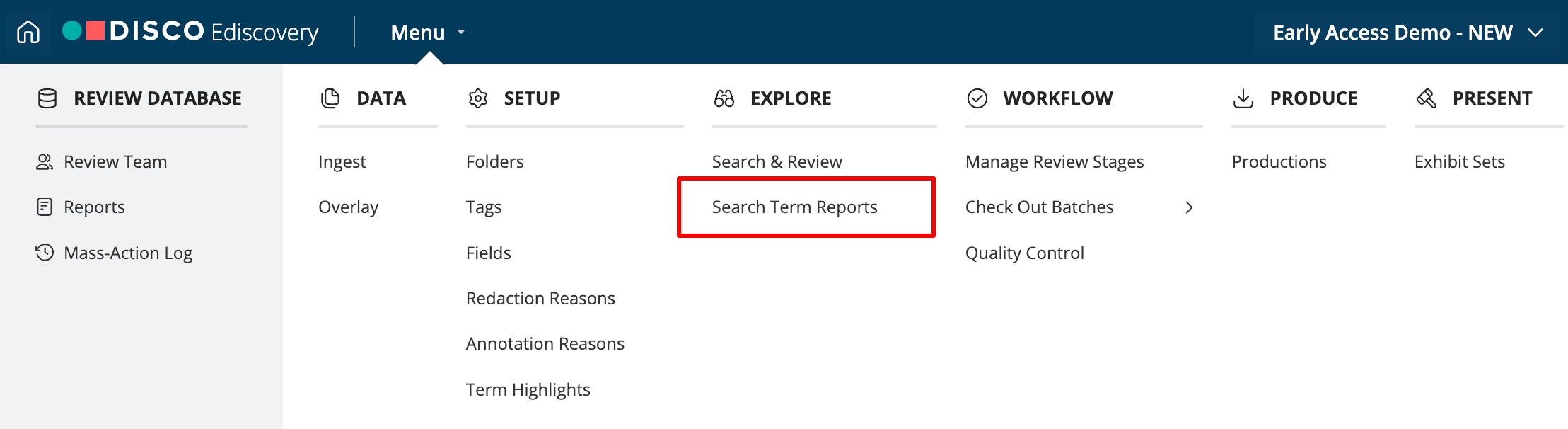
To access search term reports, in the main menu, click Search Term Reports.
The screen below will appear if no Search Term Reports exist.
Click Create a Search Term Report, enter a name for the new report, and then click Create.
Once your Search Term Report has been created, you will see the screen below.
Report Scope
Before you add your search terms, you may want to set the scope of your report. Report Scope refers to the corpus of documents you will be searching. You can choose to search all documents (default), all documents within a folder, or all documents with a specific tag. You can also click in the search bar to use the search builder, search history, or a saved search to set your Report Scope.
Once you have selected your Report Scope, DISCO will show you the number of documents within that scope.
Adding Search Terms
Start adding your search terms by either typing them in the search bar or by using the search tools. DISCO will show you the number of hits that term returns once you enter a search term. Note that the number of hits displayed in the search bar will reflect the number of hits for that term across the whole database, not just for the selected scope.
Up to 2,000 term rows may be added to a report.
To add the term to your report, click the + plus sign or hit 'enter'. Create and add search terms as needed.
If there are any errors in your search syntax, DISCO will display a warning and require you to resolve the error before adding the query
To edit an existing term row, hover your cursor on the row, then click the pencil icon.
Edit the search in the main search bar, then click the “Save changes” button in the term row.
Full Search Builder is available when adding or editing search terms.
Upload Search Terms from a .TXT File
In addition to adding search terms using the search bar, you can upload a list of terms from a text file. Click the 'upload search term list' button located to the right of the plus sign next to the search bar.
DISCO provides you with the option to either drag and drop the text file into the browser window or click browse to navigate to the text file and upload it.
Imported .TXT files of queries and copies of existing Search Term Reports may contain invalid search syntax. Term rows with errors will be ignored when you Calculate - the search cannot be run. Any syntax errors in the report will light up a red error message.
To quickly see all the rows that contain syntax errors, open the menu titled "All terms (including any errors)" and select "Terms with syntax errors". Report will show just the rows with errors.
Hover your cursor on a row to see the edit pencil icon, and click the icon to edit the query
Rearrange existing term rows
For example, you can move the term off-schedule from search term number 1 to number 3. Hover to the left of a search term to click and drag to move off-schedule above the oil/2 gas search term.
Deselect a term row
If you do not want to include the term off-schedule in your calculations, but do not want to remove it completely from your report, you can deselect the checkbox to deactivate the search. Removal of the check mark will exclude the term from being included in the calculations and from any exported version of the Search Term Report.
Reordering and deactivating search terms allows you to recalculate results, gaining valuable insight into the impact of each individual search term and the total results.
Document Count Categories
DISCO will calculate the number of documents, unique hits, and cumulative counts across three groups:
Documents
- Count: The number of documents matching the search term. Required.
- Cumulative: The number of documents matching the search term or any of the higher ranked search terms. Required.
- Unique: The number of documents matching the search term that match no other search terms in the report.
Documents and their family members
- Count: The number of documents matching the search term, plus family members of those documents.
- Cumulative: The number of documents matching the search term or any of the higher ranked search terms, plus family members of those documents.
- Unique: The number of documents matching the search term, plus family members of those documents, but excluding documents matching any of the other search terms or their families.
Families (as a unit) plus loose documents
- Count: The number of families containing at least one document matching the search term, plus the number of loose documents matching the search term.
- Cumulative: The number of families containing at least one document matching the search term or any of the higher ranked search terms, plus the number of loose documents matching the search terms.
- Unique: The number of families containing at least one document matching the search term, plus the number of loose documents matching the search term, but excluding families and loose documents that match any of the other search terms.
You can find definitions for each of these categories by hovering over the Info icon next to the Documents drop down.
Calculate and Publish for Search Term Reports
Click the Calculate Results button to calculate the counts for the selected document categories. You can recalculate the Search Term Report results whenever you add a new term, modify and existing term, rearrange the order of your terms, or deselect certain terms from being included in your report.
Click the Publish button at the top of the page.
That's it! Calculate and Publish are the steps you take to enable hyperlinks on counts, include the report itself in a search, and see report hits in the Document Viewer.
The Publish button is a toggle you can switch to Not Published at any time, without triggering a calculation.
Note: Matters with Search Term Reports created before April 7, 2025 can upgrade to the new Search Term Reports with Hit Attribution in just 2 clicks:
1. Click the Calculate button for the report
2. Click the Publish button at the top of the page
Results persist until you recalculate or change the report
Document counts and results persist even if new documents are added to the matter database.
Adding or editing a search, or changing document count categories, will clear counts and require recalculation
Calculation may return different counts if the matter data has changed since the prior calculation
Note: copying the report or clicking the Publish/Unpublish button will not clear counts
Preserving old counts
Copy the report, rename it, then Calculate and Publish the Copy. The original report can remain in a Not Published state, although the counts will not be hyperlinked. Another option is to Download the existing report with its counts prior to upgrading.
Hyperlinks to Search Results
DISCO gives you the power to quickly and easily modify search terms and recalculate counts, along with the ability to preview your search results. Once DISCO has calculated your results, and the report is in a Publish state, you can see certain results' numbers will be underlined; these are hyperlinks that can be used to create searches using your selected syntax.
For example, if you want to see the search results for only the unique documents for the term "agreement", click the 16 in the "Unique" column. DISCO will open a new tab and will run that search. The syntax will display in the search bar and results will be in the list view.
In addition to being able to run searches on the term level, you can run searches on the cumulative documents total and the cumulative documents with family total. Click the hyperlink and DISCO will bring up your syntax and results.
Documents show hits from Search Term Reports
Answers the question, "Why is this document here?"
Search Hits and Term Highlighting: when you click the document counts links in the STR, or otherwise include the STR in a query, the document results will also show Search Hits and term highlighting from the STR.
Note: Global Highlights are set in Term Highlighting (see the app Menu navigation). Global Highlights are not part of STR.
Filter and Columns show hits from Reports
Filters and columns in the search result document list show which documents are most responsive to your terms.
Filter search results to your STR
Filter to display only documents with hits from your calculated and published STR. Filter on the whole report or specific term rows.
Filter category for Search Term Reports is always displayed.
Unpublish STR reports to remove them from the Filter.
Sort the filter by doc count is the default(shown above).
You can also sort by report name/term row number. First click the "Show all" link that appears at the bottom of the term row list when there are many term rows with hits. The filter will expand, and allow you to click on the report name to begin sorting
Columns
3 types of columns you can add to your custom view:
- STRs = all report names with at least one hit on this document
- STR Hits = all report names plus term row hits
- Specific report STR Hits = term row hits from any and all selected STR
Hover over the column to see more than 4 term rows displayed for the document
Remember the report must be calculated and published to display in the columns
Suggested Workflow:
- Add columns for your Specific STR
- Filter to documents with hits on your specific STR
- See which terms hit on your documents
Download a Report
If you need to create a report of your search term results, click the Download Report dropdown to download it in a PDF or Excel format. You can select to download a PDF with or without Report Scope included.
The PDF version is a formatted report that includes all calculations performed for all active search terms. The downloaded report will include the name of the database being searched, the person who last calculated the report, and the date and time the downloaded reported was created.
The Excel version will be a custom report based on DISCO's calculations. Again, DISCO will export all results for all active searches.
Copy a Report
If you want to modify a particular search term report without impacting the original, or if you want to apply the same set of search terms to a different set of documents (Report Scope), click the Copy icon to copy the existing report.
DISCO will create a new search term report that copies the original report’s name (with a suffix of "-Copy"), Report Scope, document count selections, and all active and inactive search terms.
Navigate to the List of Reports
To see the list of Search Term Reports created, click the Search Term Reports hyperlink in the upper right hand corner.
On the Search Term Reports management page, you will find cards displaying information about each search term report created. This includes the number of search terms, the Report Scope, the Data Spaces selected, when a report was last calculated and by whom, and the total counts of the document categories that were calculated.
You can open a report, export the results to PDF or Excel, or Delete. "This report has not been calculated" message will show if a Search Term Report has not been calculated. You can click Documents and/or Documents with family members to open tabs with those respective searches if they have been calculated.